Delivery Calendar
To view or print the Delivery Calendar, click Inventory: Customer Deliveries: Delivery Calendar. The Delivery Calendar form will appear
on the screen.
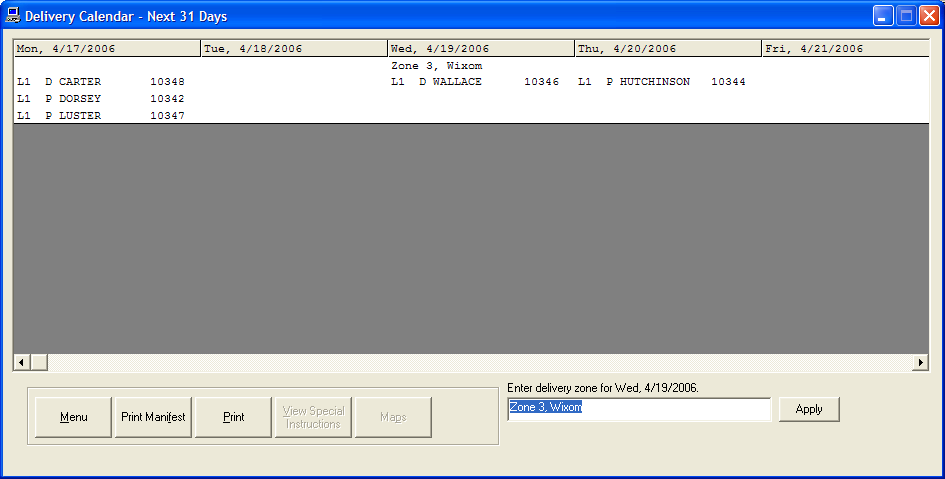
Viewing Deliveries
You will see deliveries for today and the next 31 days listed in the grid.
Click Print to print this list, or Menu to return to the main menu.
P or D Designation
You will see either a P or a D next to the style number.
The P indicates the item is scheduled for Pick-UP, the D is for Delivery.
Setting up Delivery Dates
Before you can use this section, the customer's delivery dates must be setup.
This is done either at the Point of Sale or after the sale is written, in Check Order Status.
Use this when Lay-A-Ways, Special Orders, Special-Specials, or Tag Incoming Stock orders have been received and need to be delivered.
Delivery Zone
You can also "Zone" the days to put a column heading on the days deliveries to help prevent your delivery truck from criss-crossing town.
To put in a column heading, highlight the column as in the example below, Enter the delivery Zone or City in the box Provided, and click Apply to save.
Route and Map Printing (via MS MapPoint integration)
Custom Design Software has the ability to automatically print a route sheet for the drivers complete with instructions
from the store to the
homes in the best possible order.
A map is also supplied.
This option requires Microsoft Map Point, available for purchase from Microsoft.
When there are deliveries for a day, highlight the column as below.
When available, the Map button will be enabled.
Click Map to generate the map and route.